This article is aimed at those of you who feel comfortable with training centers and want to take your training to the next level.
We will go through how you manage several training phrases at the same time and what the different options on the page do.
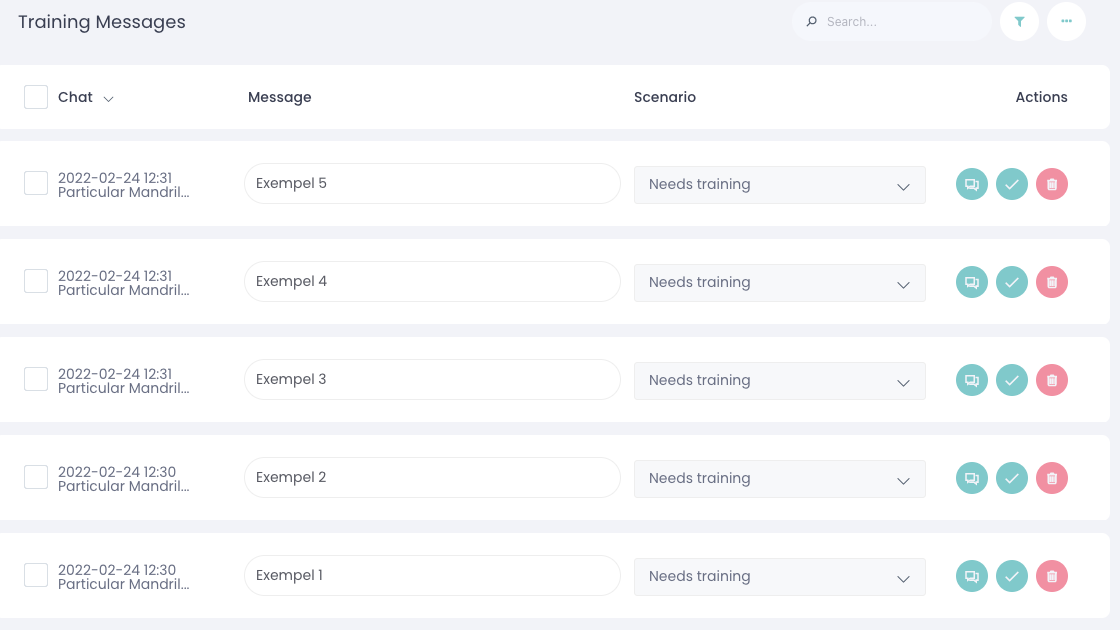
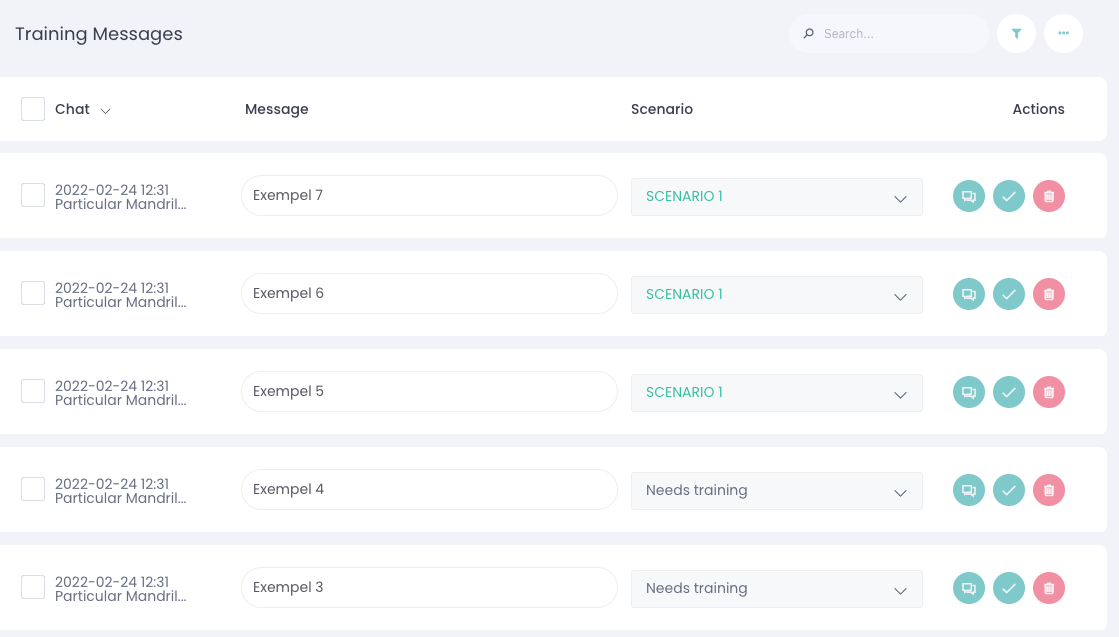
Below we find examples of what the training center can look like:
Let's highlight these by clicking to the left of the training phrase:
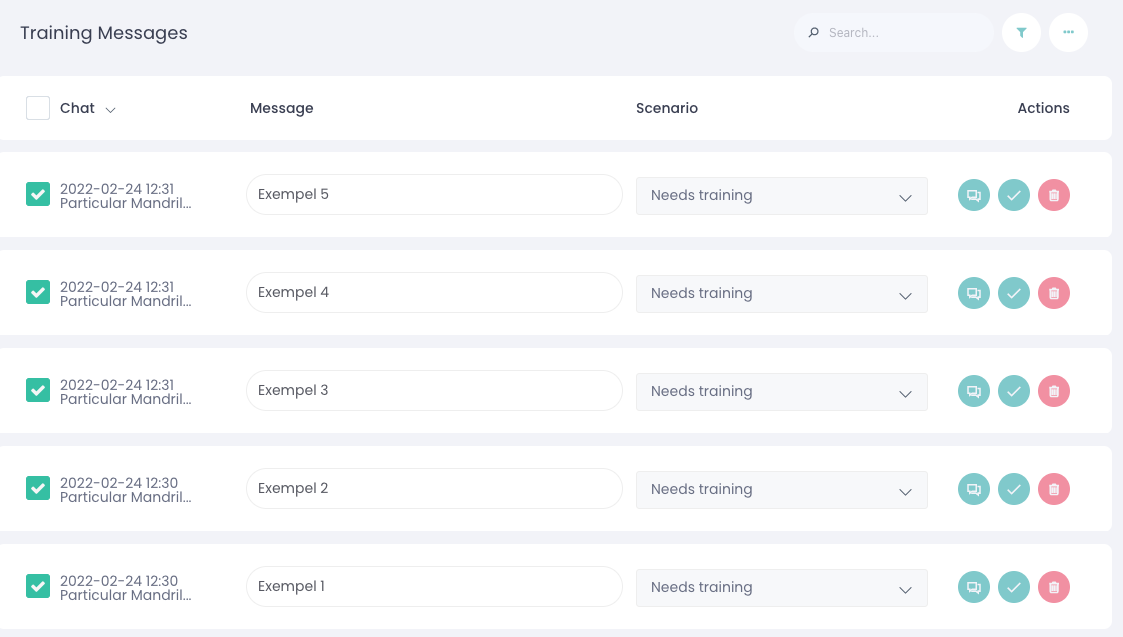
The three dots up to the right allow us to make specific options when we have highlighted training phrases:
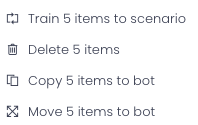
Train items to scenario = Select the scenario you want the training phrases to end up on.
Delete items = Removes the training phrases from the training center.
Copy items to bot = Copies the training phrases over to another bot.
Move items to bot = Moves the training phrases to another bot.
Approve all function
If you want to quickly practice scenarios, approve all is a powerful function.
When you have chosen which scenarios you want to practice on the page, you can choose "approve all"
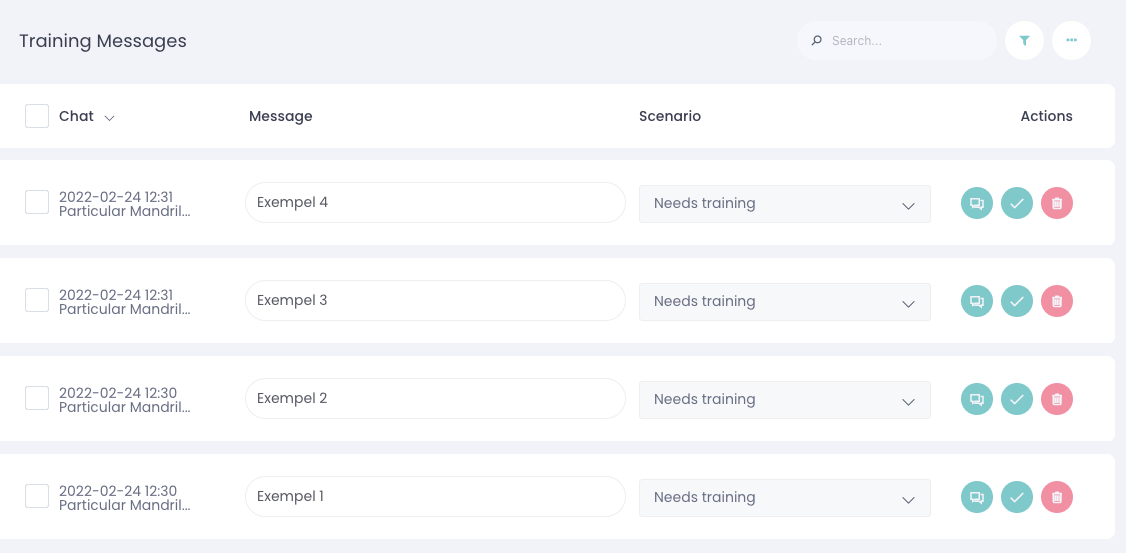
Then all phrases that have a scenario suggestion on them are trained directly into the chatbot, note that it is only on that page that the changes take place. You do not practice all training phrases on all pages with this function.
Before:
After approve all:
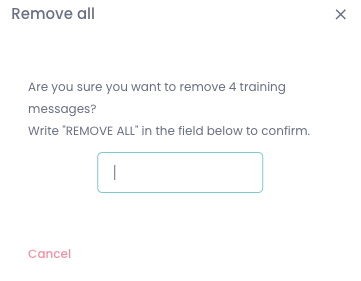
Remove all function
Remove all removes ALL training phrases from the training center, not just the page you are on.
Very important to remember.