
Part 1: Setting Your Operating Hours
First, you need to define the schedule for when your team is supposed to be working.
-
Navigate to Administration > Operating Hours.
-
Click New in the top right corner.
Configuring the Schedule Settings
-
Status: Choose "Open" or "Closed."
-
Note: A "Closed" schedule always overrides an "Open" schedule. You do not need to create a specific "Closed" schedule for nights if you have already set your "Open" hours (e.g., 9 AM to 5 PM). However, you should create a "Closed" schedule for blocks of time during the day when you are unavailable, such as a lunch break.
-
-
Days of the week: Select the days this schedule applies to.
-
Start and End Times: Define your working hours (e.g., 08:00 to 17:00).
-
Timezone: Ensure this matches your team's local time.
-
Schedule used for: You can apply this to the whole Company, a specific Skill, or a Bot. We recommend selecting Bot for the most reliable functionality.
Part 2: Understanding "Open Door" Logic
Setting the hours is only step one. For a customer to actually reach a human, an agent must be logged in and available. We call this "Open Door" logic.
-
The Door is Open: If at least one agent is set to Ready, the door is open. Customers can enter the queue.
-
The Door is Closed: If all agents are set to Not Ready or logged out (even during operating hours), the door is effectively closed.
The Safety Net: Inactivity Threshold
To prevent the door from staying open accidentally when agents walk away from their desks, set up an Inactivity Threshold in your settings.
-
This timer (e.g., 10 minutes) automatically switches an agent from Ready to Not Ready if they haven't touched their keyboard or mouse for a while.
-
This ensures customers don't wait in a queue for an agent who is on a lunch break but forgot to log out.
Part 3: Configuring the Bot to React (Filters)
Now that your schedule and agent rules are set, you must teach the bot how to check them. You will do this using Filters inside the Bot Builder.
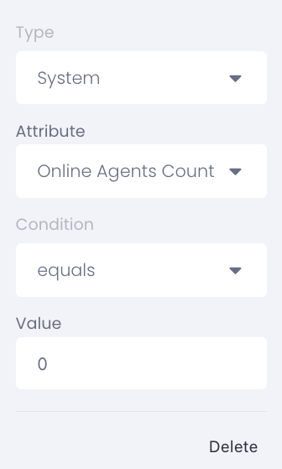
The bot uses a specific system attribute called Online Agents Count to decide what to do.
Scenario A: No Agents Available (The "Closed" Message)
You want the bot to say, "Sorry, no one is here," and offer to create a ticket when the door is closed.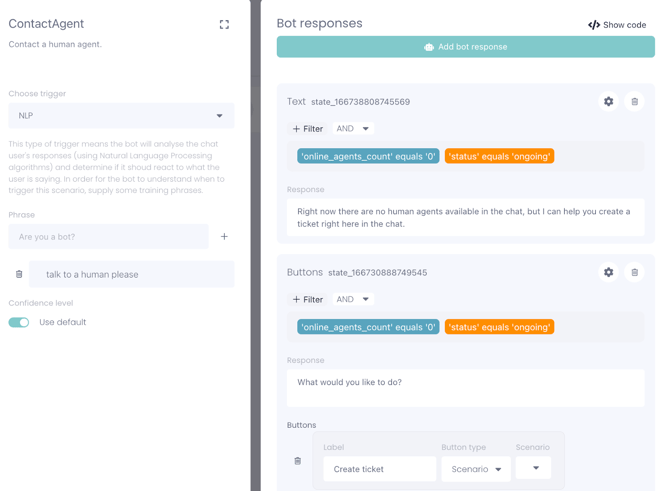
-
Go to your "Contact Agent" or handover step in the Bot Builder.
-
Add a Filter to the bot response or button.
-
Set the rule: 'online_agents_count' equals '0'.
-
Tip: As shown in the system settings, you can also add AND 'status' equals 'ongoing' to make sure this logic only applies to active chats.
-
- Action: Connect this step to a Ticket Creation scenario so the user can leave a message.
Scenario B: Agents Are Available (The Handover)
You want the bot to proceed with connecting the customer when the door is open.
-
In the same bot step, create a second response path.
-
Set the rule: 'online_agents_count' > '0' (Greater than 0).
-
Action: The bot can now ask for preliminary details (like "What is your order number?") before transferring the chat to the queue.
Summary
By combining your Operating Hours (the plan) with the Inactivity Threshold (the safety net) and Bot Filters (the logic), you ensure that customers are always routed to the right place—whether that is a live person or a ticket form.