
Quick replies are used in live chat to communicate with customers more quickly and efficiently.
There are five basic commands that are pre-programmed:
/hide = hide chat
/leave = leave chat
/ql = leave and hide chat
/transfer = transfer chat to a colleague
/trigger = replay a scenario for the customer
Do you want to add a new quick reply? No worries, we will guide you through it.
Depending on what role you have in ebbot.app it may look a little different. e.g if you are logged in as a chat user or an admin.
As an admin you will see more areas to set different settings for.
As an admin you will see more areas to set different settings for.
Go to Administration > Quick reply template
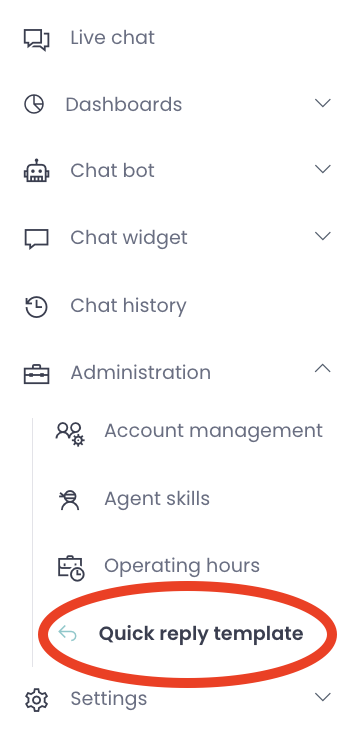
To add a new quick reply you press "New" button in the top right hand corner.
This will appear:
-
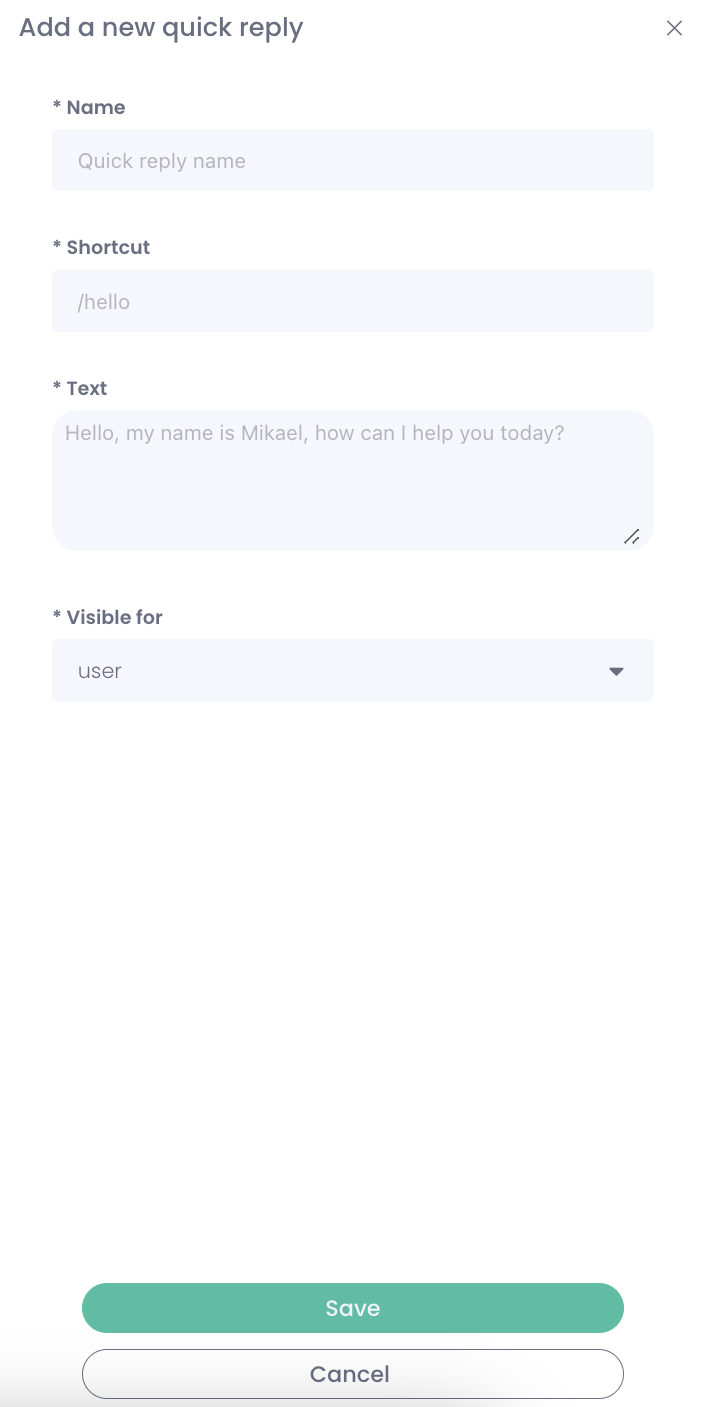 Set a name for your quick reply
 -
What is the shortcut for that quick reply
-
What text should the quick reply contain? e.g quick reply /Hello will say: Hello how may I help you?
-
As a chat user you can only set quick replies to yourself. But as an admin you can set quick replies used for company or bot.
-
Save
And you are now ready to use your new quick reply. Enjoy!