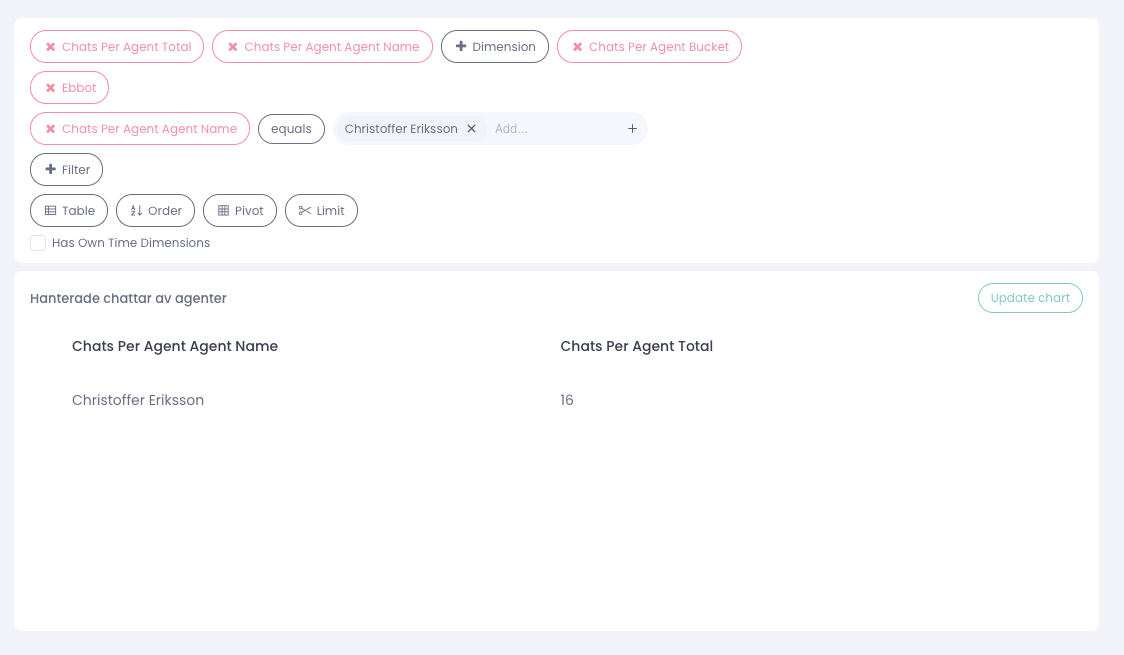
In this section we learn how to use filters so we can extract the data we want with precision.
We will use the card "Handled chats count" and "Chats Per Agent Total" and build an example of it.
Let's briefly go through what the different options mean first and foremost:
Dimension - used if you want to add more traffic to the card, for example if you have 2 bots, you can size the card so you can see both bots in the same card.
Segment - used if you want to see a larger whole or a piece of a map. E.g. bottom's managed chats or agents' managed chats.
Filter by bot - used to filter the traffic on a specific bot, useful if you have several bots.
Filter - used to filter traffic on e.g. agent name if you want to see one or a couple of specific agents.
Now that we know what the components mean, we can build a card.
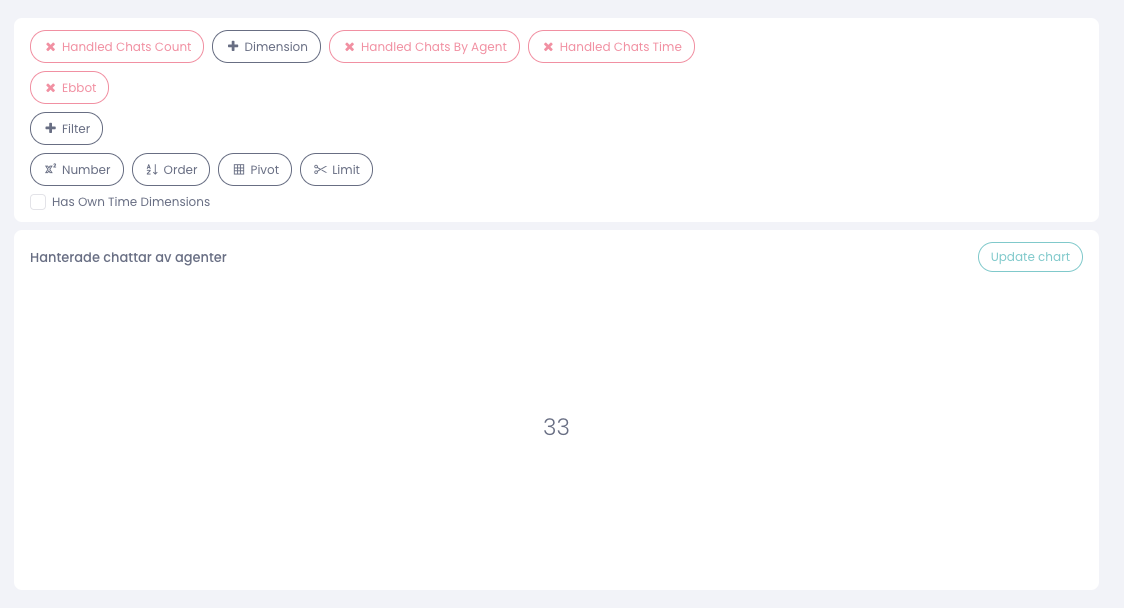
Example 1:
Here we have created a card showing managed chats, segmented by agents, filtered on the Ebbot bot.
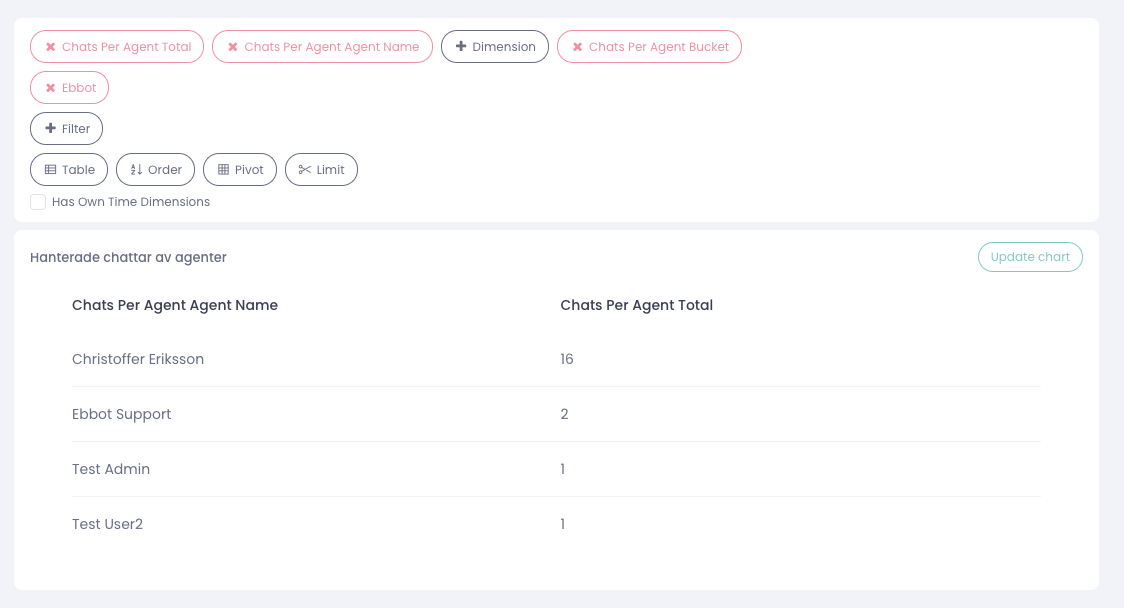
Example 2:
Here we have created a card that shows agent chats in a table, dimensioned by agent name, filtered on the Ebbot bot.
If you want to look at a specific agent, for example "Christoffer Eriksson", you can use the filter function for this: